Javascript vulnerability in Adobe Reader

A recent javascript vulnerability has been discovered in Adobe Reader and Adobe Acrobat. This public and confirmed Adobe bug would allow running malicious javascript code just by opening a PDF document. So yes, you computer could be infected by a virus or trojan if you open a PDF file using Adobe Acrobat or Reader.

The bad news are that this malicious javascript code is hard to detect inside a PDF file, so most antivirus software won't be able to prevent the exploit by scanning PDF files. On top of that, Adobe won't be releasing a patch for this bug till January 2010, so the PDF readers would be vulnerable to exploits and so on.

But there are still good news: just disable JavaScript in Adobe Reader to prevent this exploit. That simple trick will keep your computer safe from virus and malware in PDF files.

How to disable javascript in Adobe Reader

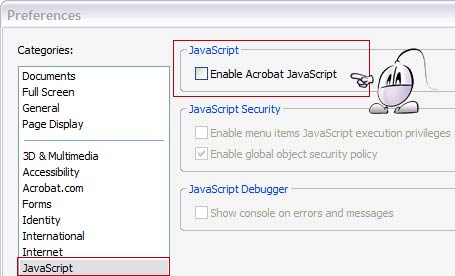
Disabling Javascript in Adobe Reader and Adobe Acrobat is very simple. Just select the Edit > Preferences menu, and click the JavaScript option. Then just uncheck the Enable Acrobat Javascript box at the top.

Disable Javascript in Adobe Reader

And that's it: unchecking this option as in the image above will prevent the malicious Javascript code from exploiting this recent vulnerability of Adobe Reader.

Say "No to all" in Windows XP

When copying lots of files, maybe you have missed having a button like the "Yes to all" version, which copies and overwrites everything. Maybe you wanted to say "No to all" when you only wanted to add the new files (without overwriting old files), and without having to click a lot of times during a massive copy of files.

Even when such "No to all" button doesn't exist, there is a way to avoid such overwhelming amount of clicks:

Inside such Windows dialog, when you press the n key, it is equivalent to clicking the no button. We have just to keep pressed the n key during the copy. Having this key pressed during the copy is equivalent to clicking the "No" button in all the confirmation dialogs that appear. But you won't need to point and click on any button. That way, we won't have to maim our poor mouse by clicking it again and again.

From an original post by Dremin.

tatachan.com - Share your images and comments

TrebleClick's development team, in cooperation with Blogtellas has created another website for your pleasure, tatachan.com

tatachan.com - Your site to share images and comments

Tatachan is an image based forum in Spanish where you can post and comment images which are funny, entertaining and original, related to jokes, technology, videogames, wallpapers, high definition, animated GIFs... and mucho more, everything without ever needing to register: just enter and have fun!

It seems that there is a recent problem with SWFObject in Firefox: SWFObject does not load Flash, and it just keeps displaying the alternative content for browsers without Flash enabled. Upgrading Flash player does not solve this Firefox specific problem.

The ironic part is that it seems that the source code of SWFObject has not been changed recently. So this bug is related with Firefox, and most probably, with a corrupted automatic Flash Player update that conflicts with SWFObject just in Firefox. A normal reinstallation of the latest Flash Player does not seem to solve the problem.

One way to solve specific SWF Object problems in Firefox is disabling the automatic hiding of the alternate content till the Flash content is fully loaded. This bug has been reported for Firefox 3.5 and is solved just by adding swfobject.switchOffAutoHideShow() in the SWFObject code.

Another thing to check is adding all the Javascript code for SWFObject inside the document head. Placing the code for initialization inside the document body seems to make SWFObject stop working in Firefox.

If all the previous fixes fail, the only way to solve this SWFObject problem in Firefox thus far would be reverting to a very old SWFObject version. Both SWFObject 2.1 and the recent SWFObject 2.2 versions seem to be experiencing this problem in Firefox, but versions from when SWFObject was still called FlashObject seem to work fine.

If this problem is not solved quickly it would be better to remove SWFObject from the webpage, or probably several Firefox users won't be accessing the Flash content. The latest posts on this bug tracking thread seem to be closely related to this bug. Let's keep an eye on it till the fix is found.

How to get your tracks back on Spotify

Maybe when you entered at some of your playlists at Spotify, you found out that one or more of your Spotify tracks are missing, as if those songs were erased from your playlist automatically.

Well, your tracks weren't erased. The fact is that Spotify is continuosly dealing with record companies and all sorts of music publishing companies. That's why Spotify may have lost the play rights for those songs, and then they decided to remove those songs temporarily. But these songs haven't been erased from your playlist: these songs have only been hidden.

You cannot play those songs, but you can get your tracks back on Spotify (keeping your playlists, so you may be able to listen to that songs in the future, if they restore such songs, or to keep just a backup of your musical preferences). This is how to do it:

  • In Spotify's main menu, click Edit / Preferences (Control + P).
  • Disable the checkbox (if you already had it marked) tagged as Hide unplayable tracks in Spotify's playlist section inside this Preferences menu.

And that's how to get your tracks back on Spotify when temporary song removals take place!

From an original post by Dremin.

How to kill Windows process automatically with a .BAT file

One of the easiest ways to speed up Windows is closing unnecessary taks and processes. That's why sometimes we want to kill many Windows programs / processes, but we do not want to disable neither manually nor forever. It could be a group of programs that we rarely use, but which require some system process running permanently. So when we turn on the computer with other task in mind, we don't want these unneeded processes consuming Windows resources continuously.

That's why we are going to create a batch file (.BAT) which with a double click on it will kill as many Windows processes as we want.

So let's open Windows Notepad (Shortcuts: "Start Menu / Run / Notepad" or "Windows Key + R / Notepad") and then typing:

TASKKILL /IM "process name" /F

Example:

TASKKILL /IM MSPAINT.EXE /F

"IM" lets us input the name of the Windows process to kill, and "/F" enforces such process closing action and kills them forcefully preventing confirmation prompts or hanged.

If we want to specify a group of programs to close, we should only repeat the previous line of code with each process name, inside the same file.

Example file:

TASKKILL /IM MSPAINT.EXE /F TASKKILL /IM NOTEPAD.EXE /F TASKKILL /IM CALC.EXE /F

Once this file is ready, we should keep it using File / Save as...

And after the name chosen for this file we should appen the .bat file extension. That's how we create a Batman file... well, no, a .BAT file (batch process).

To save a .bat file using notepad we have to change the file type, which is by default Text Files (*.txt), choosing All Files. This is very important. Otherwise, we would just creating a text document called "whatever.bat".txt, and that won't work.

Let's also pick the ANSI encoding type for this process kill bat file.

And finally, we click on the save button to store the file.

How to save a bat file

By default, this creates a file with an icon like this icon, depending on your own system icon configuration set.

Now, whenever we want to close every Windows process specified in the file, we only need to double click that file, and it will perform the automatic process killing for us.

Running a .BAT file is like running the Windows command prompt code to close all the processes, but these batch files perform all the necessary actions automatically, in no time.

We can also check a complete and detailed list of the values and parameters that we could add after "TASKKILL" just clicking in Start / Run (Windows + R), typing cmd (to run the Windows command prompt), and typing at this window: TASKKILL/?.

Running processes with .BAT

If we want to reopen every Windows process previously killed with our .BAT file, with no need to reboot Windows, we can automatically perform the reverse operation, creating another .BAT (same process as before) this way:

START "Name" "C:\...path.exe" START "Name" "C:\...path.exe" START "Name" "C:\...path.exe"

To specify the full path of the target program we can only use ASCII text, with no accents or other special characters.

Example:

START "Paint" "C:\WINDOWS\System32\mspaint.exe" START "Notepad" "C:\WINDOWS\notepad.exe" START "Calculadora" "C:\WINDOWS\System32\calc.exe"

NOTE: This trick to run or kill Windows process also works to create a .BAT file to automatically open our most used apps (using the "START" Windows command), and another .BAT to kill these programs (the TASKKILL command file).
Where to find free images

Let's face it: a good and eye catching image can improve your articles, websites and presentations.

But you already knew that you couldn't reuse any image that you found in Internet, didn't you? Most images out there are copyrighted, even if there aren't any explicit copyright statements or watermarks on the image. That means that you cannot pick and use whatever you find using Google Image search, for example.

So if you want to find a really free image, you have to look for an explicit license statement in its website, that entitles you to reuse such photo or graphic. One of the most popular licenses is Creative Commons, which lets you share your work with specific permissions.

But how do you find images under Creative Commons licenses? Don't worry: the 2 most popular search engines have been upgraded to cover this issue:

  • Yahoo Image Search now allows you to filter search results according to the Creative Commons License type. On top of that, Yahoo now owns that huge database of photographs called Flickr, and the image search results will also include free images from Flickr.
  • It seems that Google Image Search has been planning a similar update, and now, this kind of free image search can be done at Google Images using URL search parameters. Google will be adding these free image search options to the main interface of Google Image Search soon, but in the meantime, you can use this free image search form.
  • There's another trick to discover domains that contain free images under Creative Commons licenses. Most of these sites link back to the Creative Commons webpages or icons. So you can perform an advanced search at your favorite search engine of webpages that link to the Creative Commons icon and that contain your target image keywords.

As you see, Internet is full of free images that you can use, if you know how to find them.

