Showing posts with label video editing. Show all posts

Geeky 3D Music Video.

From one of our writers and designers, Rael del Fraile, comes this 3D video of the little big-headed robot from Star Wars, dancing like the King of Pop:


Well, now you can tell your friends that you have seen R2D2 dancing like Michael Jackson.

What is the H.264 video codec?

You already know H.264. It is a video codec used in YouTube videos, Blu-ray and lots of other videos with very good quality / compression ratio.

But did you know that such standard created by the MPEG group is not free? Yes, H.264 usages aren't free, as it is a patented software algorithm.

So H.264 has changed from being a great video codec to being one of the obstacles which make difficult having a good, common open source video standard as part of the HTML 5 standard, so that it could be used throughout all web browsers free of additional charge.

The On2 codec alternative

More than 5 years ago, Flash video achieved an extremely good quality / compression ratio using a new proprietary video codec called Sorenson Spark. Thanks to it, some small videos started appearing on our web pages.

But the days of glory of Sorenson quickly ended when the On2 codec (specially, its On2Vp6 version) was released. This is the video codec that has been used on most Flash videos that you can see out there. The amazing part is that On2 allows nearly full screen high quality videos that load in nearly real time using just an average ADSL connection.

Google could make On2 free and open source

The interesting part is that On2 was purchased by Google. And Google owns YouTube, the biggest video site in the world. So Google has a golden chance of making the last version of the On2 codec (On2Vp8) an open source codec. And it could start using it through all its YouTube videos, making it a de facto standard in a blink.

If Google did such open source effort, it would be removing the need to use proprietary technologies from the web video landscape (Flash Player still contains some proprietary pieces of code, and remember that the H.264 codec is not free as it is patented till 2028). That would really lead to a new open video standard. And that would be progress.

YouTube Hacks: URL tricks

Did you know you could hack YouTube options using different URL parameters? It's a simple trick of writing query values in the video URL.

You can view and embed high quality videos, download YouTube videos, auto start playback from a part of the video, disable other YouTube related videos, and even bypass regional video restrictions!

Take a look at the whole YouTube hacks and URL tricks in the original post at makeuseof.com!

By the way, I wonder if this hack to bypass the regional restrictions would work for users in the United Kingdom as a trick to access high quality music videos, avoiding the UK YouTube music block.

Source: makeuseof.com YouTube URL tricks.

Turn YouTube video quality into HD Youtube in 1 simple step

Did you know that just adding &fmt=18 at the end of a YouTube video URL will turn such video in a High Quality YouTube video?

Let's see an example of how a High Quality YouTube video URL looks like:

http://www.youtube.com/watch?v=W6nppcKOYGo&fmt=18

And that's all! It is that simple.

YouTube video quality in detail: quality comparison

Let's take a closer look inside the two different YouTube video formats and see how much improvement you can obtain adding just &fmt=18:

Normal quality YouTube video:

  • Video format: Flash Video (.flv).
  • Video codec: FLV1.
  • Frames per second: 15 fps.
  • Video resolution: 320 x 240 pixels.
  • Video audio: MP3 at 22050 Hz.

High quality YouTube video:

  • Video format: MPEG-4 (.mp4).
  • Video codec: AVC1.
  • Frames per second: 29.97 fps (as NTSC).
  • Video resolution: 480 x 360 pixels (50% higher!).
  • Video audio: MP3 at 44100 Hz, 2 channels, 1411 kbps.

The High Quality YouTube video is approximately double the size in MegaBytes of the normal quality video. But the video quality improvement is worth the effort: the new video has bigger screen dimensions and much better video bitrate (and thus, much less video compression artifacts).

Flash video is the best format to optimize bandwidth, but the other YouTube MPEG-4 video codec is doing a great job keeping the quality high.

See it by yourself! Here is a normal quality YouTube video, and this is the same YouTube video in High Quality.

Unfortunately, this trick won't work to embed High Quality YouTube video in an external site. The good news are that our old tricks to embed HD Flash video still work.

Nevertheless, it seems that YouTube is taking advantage of the fast modern networks too, and this &fmt=18 is a big step towards an HD YouTube!.

Flash video bandwidth saving tricks: scale video size

It's great to have high quality Flash videos embedded in your site, but keep in mind that each time a good quality video is downloaded, it consumes a lot of bandwidth. You can eventually get an annoying message of bandwidth limit exceeded, which would either make your server unavailable during the rest of the month, or cost you an additional fee according to the bandwidth quota exceeded.

The idea is to achieve an appropriate balance between the video quality (the amount of video compression) and the total video file size in bytes (the total amount of bandwidth consumed by a full video download).

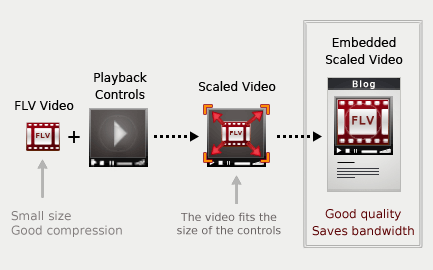
The trick is to create a Flash video file with an average bitrate and small screen size. Then, scale the Flash video size when embedding the video on your website.

Flash video: scale size to save bandwidth

These are the steps that you should follow to save video bandwidth while keeping the embedded Flash video quality high:

  • Convert your video to Flash Video (.FLV) using a video bandwidth around 400 kbps.
  • Reduce the video size of the .FLV file. The screen dimensions of the .FLV video can be as little as the desired video dimensions divided by 1.25.
  • Specify the desired Flash video dimensions (not the real, reduced .FLV video size) as the video dimensions when embedding your video in your webpage. Here are some tips on configuring the playback controls to embed high quality Flash videos.

And that's it. The 2 main ideas of this trick are just so simple and effective:

  • Use an average streaming bandwidth on a small video to achieve a good compression quality.
  • Don't use the original dimensions of your Flash video: scale size to match the desired video size.

Modern networks can play a Flash video of 400 kbps in real-time streaming or with little preload time. The video quality will be kept high as well, because the real screen dimensions of the video are small. With such a good compression quality you will have little artifacts on your Flash video. You will even keep the video subtitles and other video texts clearly readable.

On the other hand, the distortion of the scaled video is less annoying than the compression artifacts. Just don't scale your video size more than a 125% of the real video size, or you could start getting too much pixelation.

The result is a Flash video of the desired screen dimensions with little compression artifacts: a good quality video with optimized video bandwidth.

Video in Blogger: embed Flash video and a Flash Video Player

Videos can be an awesome kind of content to include in your blog. Embedding YouTube videos in Blogger is very easy. However, using YouTube videos has some drawbacks:

  • The actual resolution of YouTube videos is limited to 320 x 240 pixels.
  • The video suffers from strong compression (limited to 250 kbps).
  • The YouTube watermark may overlap your video.
  • The customization of the video playback controls is limited.

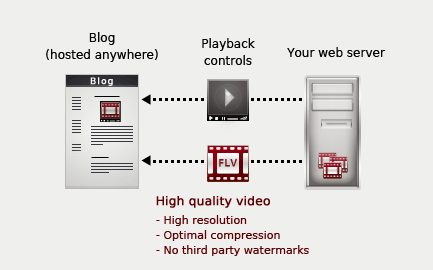
The FLV video format (Flash Video) offers a great amount of compression while keeping the video quality high. So I would really suggest you to create your own Flash Videos in this FLV format, host these videos on your own webserver, and then embed the FLV video in Blogger. Follow these steps to embed high-quality videos in your blog:
How to embed FLV videos in Blogger

Step 1 - Convert your video into FLV format

The first step is to convert your video into FLV format. Adobe Flash Editor has an Import Video function that quickly converts the original video into FLV. Nevertheless, the Flash IDE is an expensive application, so I would suggest you to use some free video encoder to turn your original video file (.avi, .mpg, .mov, ...) into FLV.

SUPER would be my FLV video encoder of choice.

Convert your video into Flash Video and upload the resulting .FLV file to your server. Just be careful with your bandwith quota, as video content may be rather heavy.


Step 2 - Create the playback controls

Once you have a FLV video, you will need to create the playback controls, so you can play, stop and pause the video, see how much video has been preloaded, control the video volume and so on.


Flash can also create some video playback controls, but they won't be much useful, as you cannot use an absolute path to link to Flash video controls. So you cannot embed the Flash video controls directly on your blog, because you won't be able to link to the original SWF file containing the playback controls.

The solution is to use an open source FLV video player. I would recommend you to use the OS FLV Player, which is a truly open source, customizable and reliable FLV video player. And you don't need even to have the Flash Editor to use this module. You will just need to upload the file with the playing controls to your server (player.swf).

I will teach you how to configure OS FLV in the following step, so it will be easy to embed this video player in Blogger.


Step 3 - Add it to Blogger: Embed Flash Video

OS FLV Player provides some php scripts that automatically create the HTML code to embed the FLV video on your webpage. But, since we are going to host the video playback controls, as well as the FLV video on a webserver that is not in the same domain as Blogger, we will need to embed the video in Blogger by hand. This is the code that you should embed on your Blogger post to include the video:

<object width="[Width of your video]" height="[Height of your video]" id="flvPlayer">
   <param name="movie" value="[Absolute path to player.swf]" />
   <param name="FlashVars" value="&movie=[Absolute path to your .FLV video]">
   <embed src="[Absolute path to player.swf]" flashvars="&movie=[Absolute path to your .FLV video]" width="[Width of your video]" height="[Height of your video]" type="application/x-shockwave-flash">    </embed>
</object>

Just change the following parameters:

  • Use the same width and height values that your .FLV video.
  • The absolute path to the SWF file with the OS FLV playback controls (example: http://www.mydomain.com/player.swf).
  • The absolute path to your FLV video file (example: http://www.mydomain.com/myVideo.flv).

Step 4 - Customizing the video player in your blog

You may want to adjust the look and feel of your playback controls in order to make the embedded Flash video match the style of your blog. As the OS FLV Player is an open source player, you could edit the source .FLA file by yourself (player.fla), creating a new skin for the Flash controls. However, you will need the Flash IDE to edit this source file.

There is also a very simple way to customize the colors of the elements inside the video playback controller just by tweaking a couple of parameters. Here is the sample code:

<object width="640" height="480" id="flvPlayer">
   <param name="movie" value="http://www.mydomain.com/player.swf" />
   <param name="FlashVars" value="&movie=http://mydomain.com/myVideo.flv&fgcolor=0x333333&bgcolor=0x999999">
   <embed src="http://www.mydomain.com/player.swf" flashvars="&movie=http://mydomain.com/myVideo.flv&fgcolor=0x333333&bgcolor=0x999999" width="640" height="480" type="application/x-shockwave-flash">    </embed>
</object>

The parameters that you should adjust are the following:

  • The foreground color (fgcolor, set to 333333 in the example).
  • The background color (bgcolor, set to 999999 in the example).

Conclusions

It's easy to embed your FLV videos in Blogger. You just need to convert your videos into FLV files and embed an open source video player. This technique offers many benefits:

  • You can embed high-resolution video in your blog.
  • As you control the compression, you can embed high-quality Flash videos.
  • You can get rid of third-party watermarks in your FLV videos.
  • The appearance of the video playback controls is fully customizable, so it can match the look and feel of your blog.

Take advantage of these techniques and start embedding high-quality video content in your blog!